
PolkaGate: Overview Print
Modified on: Mon, 15 Dec, 2025 at 3:56 PM
This article remains available for reference but is no longer updated or maintained.
Please use the information at your own discretion and risk.
For more details, refer to the official annoucenment.
PolkaGate is a Polkadot wallet developed and maintained by PolkaGate Foundation. It is an open-source browser extension available for Mozilla Firefox and Chromium-based browsers, funded by the Kusama Treasury. PolkaGate is compatible with many DApps and tools in the ecosystem.
In this article, we'll show what PolkaGate looks like and what you can do in it.
‼️ IMPORTANT

PolkaGate is a non-custodial wallet, which means that only you have access to your accounts. For this reason it is imperative that you keep your mnemonic phrase and backup file with a password safe. Without either of these, it is impossible to restore your account if you ever lose access to it.
ℹ️ GOOD TO KNOW
If you have any questions about PolkaGate, or run into any issues and require further assistance, feel free to ask our AI chatbot or contact us.
Alternatively, you can contact the PolkaGate team directly and receive specialised assistance from the team that developed the wallet. You can contact PolkaGate support on Element or at polkagate@outlook.com.PolkaGate overview
PolkaGate is a browser extension available for Chrome, Edge, Brave, and Firefox.
Once you install the extension and open it for the first time, you'll be offered to create a new account, restore your existing account, or use a demo account:
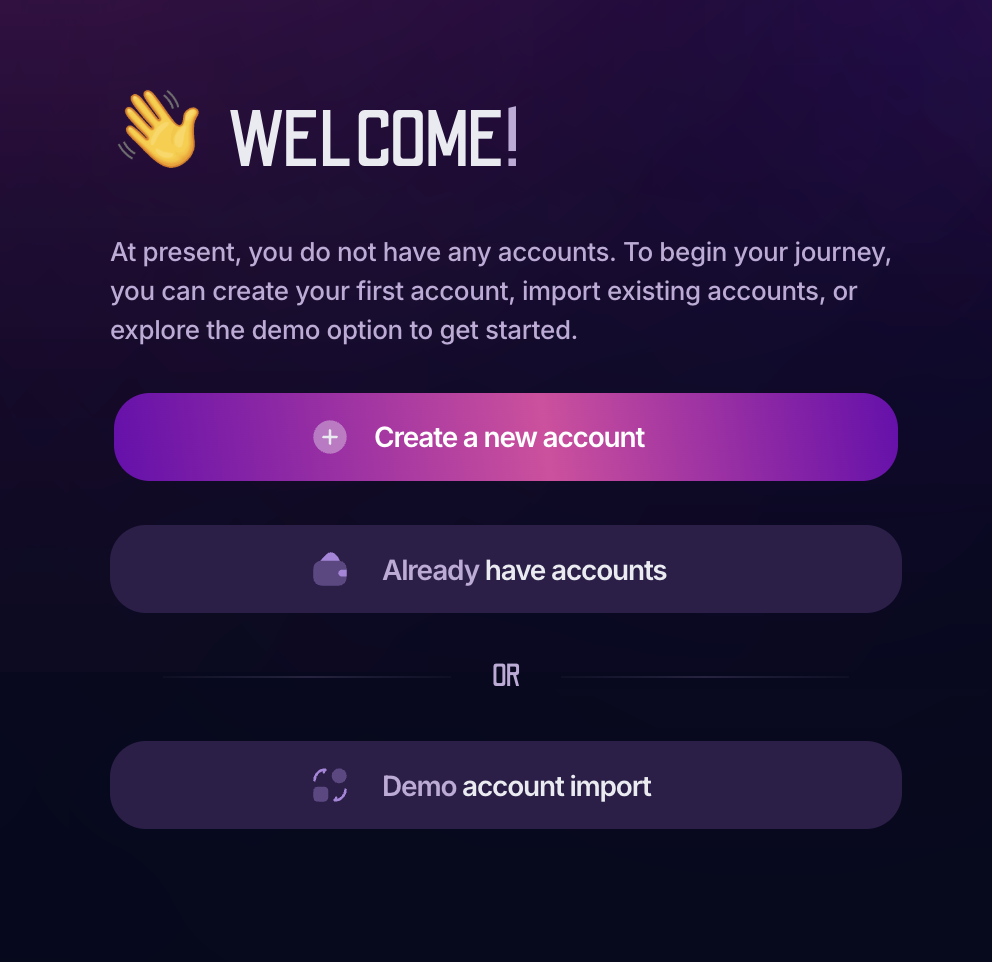
ℹ️ GOOD TO KNOW

The login password would just restrict the ability to open the wallet and show its accounts. Each account will require a different password to sign any extrinsic from it.
During the process, you'll be able to create or add accounts to the extension:
- Create a new account in PolkaGate.
PolkaGate: How to Create an Account - Restore an account with its JSON backup file and password or its mnemonic phrase.
PolkaGate: How to Restore an Account - Add a watch-only account.
PolkaGate: How to Add a Watch-only Account - Connect a Polkadot Vault account (or another QR signer).
PolkaGate: How to Connect a Polkadot Vault Account - Connect a Ledger account.
PolkaGate: How to Connect a Ledger Account
Once you've created or added your accounts to PolkaGate, you'll see the main screen:
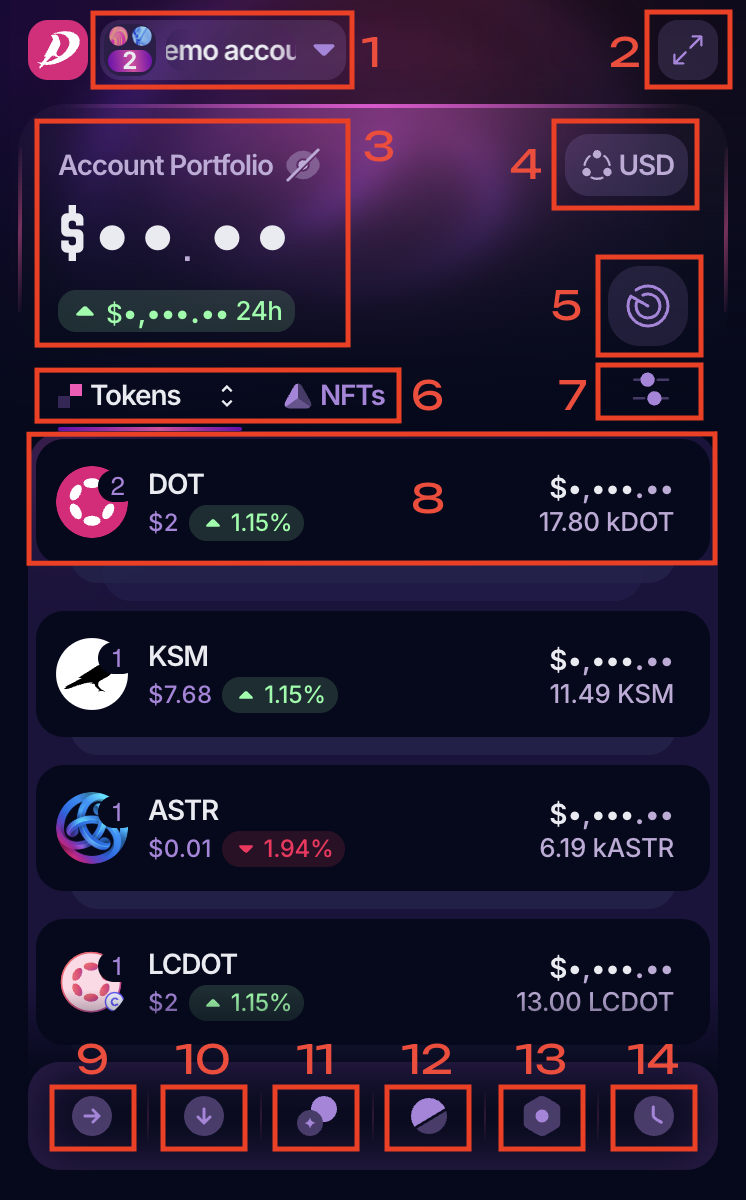
1. Drop-down account menu: This section allows you to select which account you want to display in your extension.
2. Fullscreen View: This icon lets you expand the PolkaGate extension into fullscreen mode.
3. Account portfolio: This area displays your total balance in your preferred currency.
4 Currency: This icon allows you to choose the currency or cryptocurrency in which you prefer to view your balance.
5. Website connection: Allows you to hide or show your account to a specific website or dApp.
6. Assets: In this section, you can choose whether to view tokens, networks, or your NFTs.
7. Manage networks: Lets you enable or disable the networks or tokens you want to show in your extension.
8. Token balances: This area displays the tokens you hold, the networks they belong to, and both the amount and value in your preferred currency.
9. Send: Allows you to send tokens to another account.
10. Receive: Displays your public address for a specific network.
11. Staking: Gives you access to the staking panel, where you can stake your tokens.
12. Governance: Allows you to navigate to Polkassembly or Subsquare.
13. Settings: Provides access to your account and extension settings.
14. Recent Activity: Allows you to view your account’s transaction history.
